
How to Replace Text Highlight Color in Google Docs
Highlighting draws attention to important text. Replace text highlights with precise formatting control.
Text Highlight Replace Features
Replace text highlights by:
- Changing highlight colors
- Maintaining document visual hierarchy
- Ensuring consistent formatting
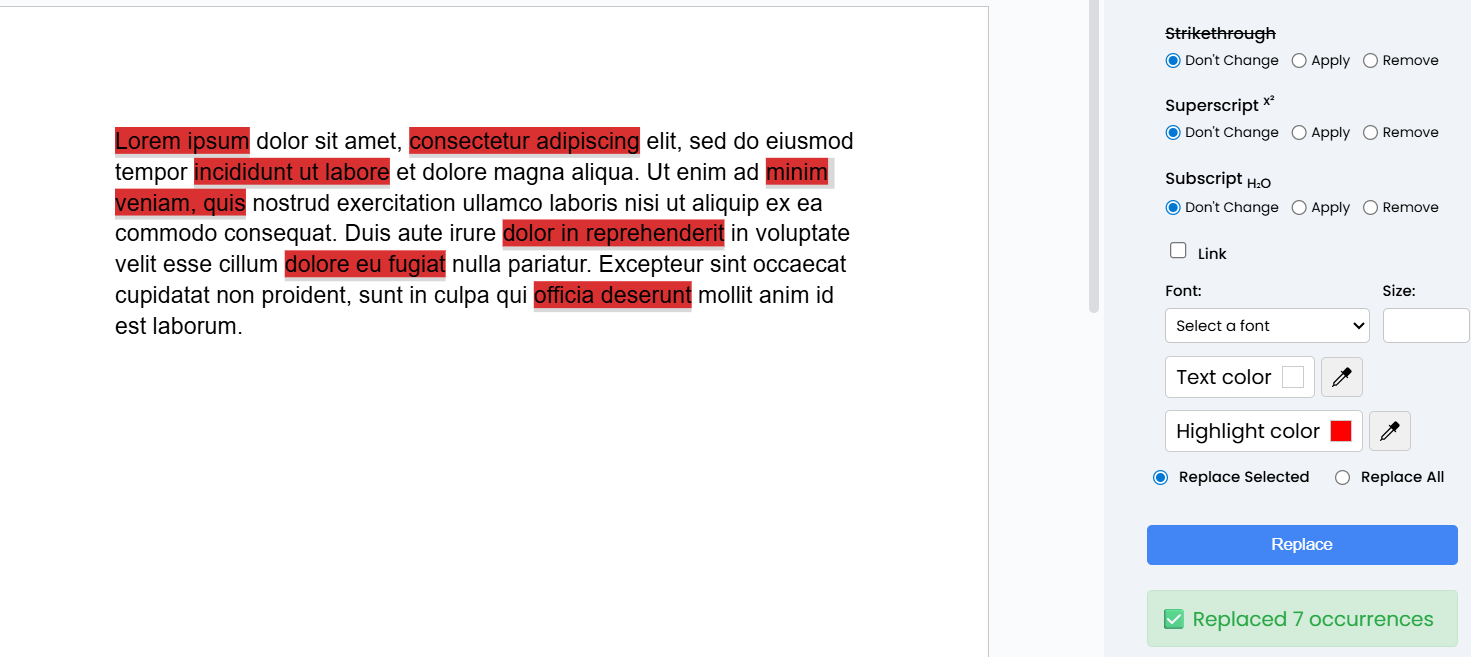
Before:
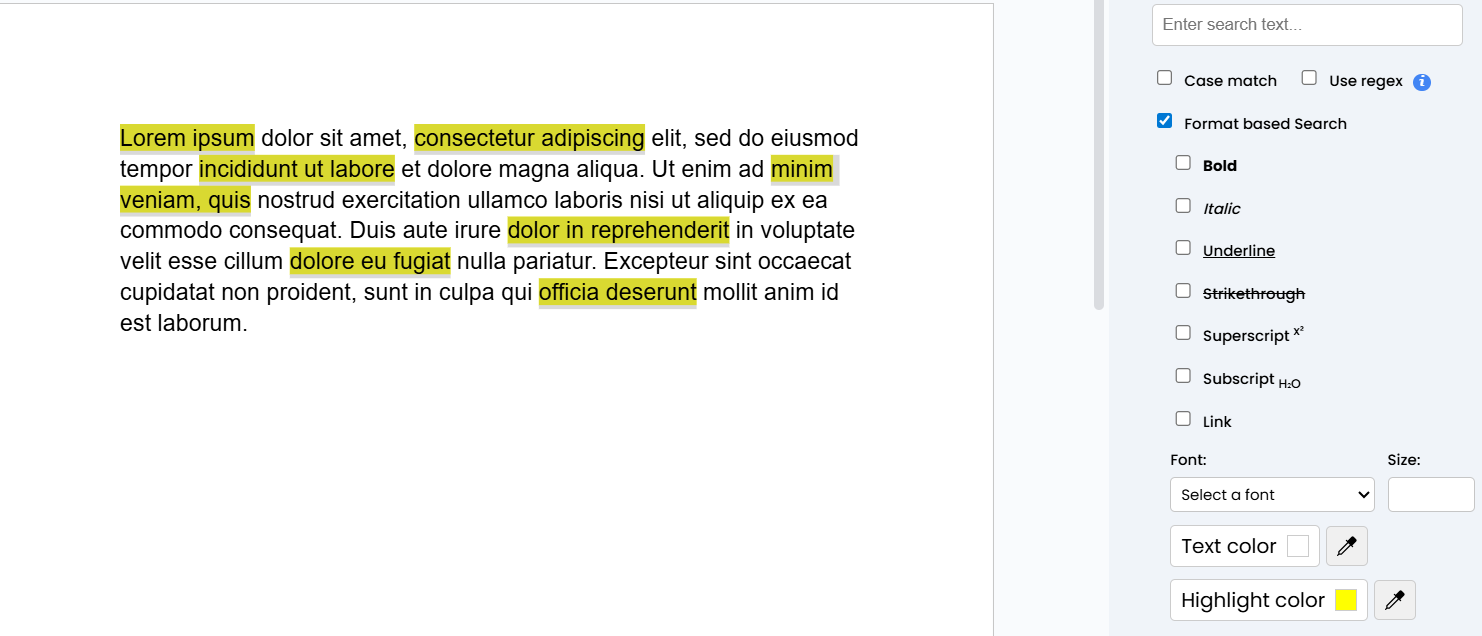
After:
Advanced Search and Replace: Text Highlight Solution
Replace text highlights with advanced controls:
- Open your Google Docs document
- Go to Extensions > Advanced Search and Replace > Open Search Panel
- Check “Format based search”
- Select desired highlight color
- Click “Search”
- Scroll to replace section
- Check “Format based replace”
- Choose the highlight color you want to change to
- Choose replace selected or all
- Click replace
- There you go!
Unlock ultimate document editing control! Install the Advanced Search and Replace add-on and transform how you manage text formatting.
You Might Also Like
Complete Regex Guide for Advanced Search and Replace in Google Docs™
Google Docs (and Advanced Search and Replace) uses the powerful RE2 regex engine. Just tick “Use regex” in the sidebar and you’re ready to go!
Read More »How to Use Favorite Searches in Advanced Search and Replace for Google Docs
Save your most-used searches (e.g. text + formatting + regex + case options) and reload them instantly with the Favorites feature – perfect for repetitive
Read More »How to Replace Text Color in Google Docs
Text color can emphasize and organize information. Replace text colors with precise control. Text Color Replace Capabilities Our add-on lets you: Change text color precisely
Read More »How to Replace Text by Font Size in Google Docs
Font size can convey importance and hierarchy in your document. Replace text sizes with exact precision. Font Size Replace Features Replace text sizes by: Changing
Read More »How to Replace Font Text in Google Docs
Font choice can dramatically impact document readability. Replace text fonts with precision and ease. Font Text Replace Capabilities Our add-on allows you to: Change text
Read More »How to Replace Link Text in Google Docs
Links are crucial for adding context and navigation in documents. Our Advanced Search and Replace add-on gives you precise control over link replacement. Link Text
Read More »How to Replace Strikethrough Text in Google Docs
Strikethrough text indicates deletions or special notations. Replace strikethrough text with precise formatting control. Strikethrough Text Replace Capabilities Replace strikethrough text by: Maintaining original strikethrough
Read More »How to Replace Underlined Text in Google Docs
Underlined text serves specific purposes in documents. Replace underlined text with precision and control. Underline Text Replace Features Our add-on enables you to: Replace underlined
Read More »How to Replace Italic Text in Google Docs
Italic text adds nuance and emphasis to writing. Our Advanced Search and Replace add-on gives you precise control over italic text replacement. Italic Text Replace
Read More »How to Replace Bold Text in Google Docs
Bold text carries emphasis and importance. Sometimes you need to replace bolded text while maintaining its impact. Bold Text Replace Features Our add-on lets you:
Read More »How to Replace Text with Advanced Formatting in Google Docs
Replacing text is more than just swapping words. Sometimes, you need to maintain or modify the formatting while making changes. Our Advanced Search and Replace
Read More »How to Use Replace Feature in Google Docs
Replacing text is a fundamental editing task, but standard replace tools often fall short of providing comprehensive control. Discover how to transform your document editing
Read More »How to Search for Text Highlight Color in Google Docs
Highlighting is a powerful way to draw attention to important text. But finding all highlighted text can be challenging with standard search methods. What is
Read More »How to Search for Text Color in Google Docs
Color is a powerful tool for emphasizing and organizing information in documents. Finding text with specific colors can be crucial for review and editing. What
Read More »How to Search for Text by Font Size in Google Docs
Font size can convey importance and hierarchy in your document. Finding text of a specific size can be crucial for formatting and design. What is
Read More »How to Search for Specific Font Types in Google Docs
Font choice can dramatically impact document readability and design. But finding text with specific fonts manually can be time-consuming. What is Font Text Search? Font
Read More »How to Search for Linked Text in Google Docs
Links are powerful tools for adding context and navigation to your documents. But finding all linked text can be challenging with standard search methods. What
Read More »How to Search for Strikethrough Text in Google Docs
Strikethrough text indicates deletions, edits, or special notations. Finding all strikethrough text can be crucial during document review and editing. What is Strikethrough Text Search?
Read More »How to Search for Underlined Text in Google Docs
Underlined text draws attention and serves specific purposes in documents. But finding all underlined text manually can be a challenging task. What is Underline Text
Read More »How to Search for Italic Text in Google Docs
Italic text adds nuance and emphasis to your writing, but finding all italicized words in a long document can be tedious. Discover how to locate
Read More »How to Search for Bold Text in Google Docs
Bold text stands out for a reason – it highlights important information, emphasizes key points, and draws the reader’s attention. But finding all bolded text
Read More »How to Search for Formatted Text in Google Docs
Searching for text isn’t just about finding words anymore. Sometimes, you need to find text based on its appearance and formatting. This is where format-based
Read More »How to Use Case-Sensitive Search in Google Docs
Not all searches are created equal. Sometimes, you need to find text that matches exactly how it’s written, including its capitalization. Case-sensitive search allows you
Read More »How to Use Regex Search in Google Docs
Regular text searches can be limiting, especially when you need to find complex patterns or specific text structures. This is where Regular Expressions (Regex) come
Read More »How to Search for Text in Google Docs: A Comprehensive Guide
Google Docs provides basic search functionality, but sometimes you need more power to find exactly what you’re looking for. In this post, we’ll explore how
Read More »